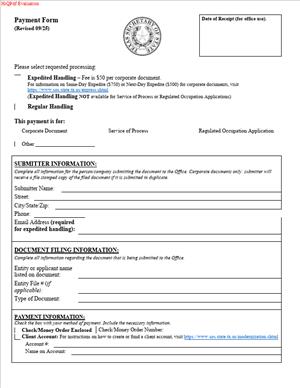
Payment Form (Revised 09/25)
Fill out nowJurisdiction: Country: United States | Province or State: Texas
What is a Payment Form?
The Payment Form is the Texas Secretary of State’s standardized way to collect fees for filings and orders. You attach it to documents you send by mail, fax, or hand delivery so the office can charge the correct amount and link your payment to your submission.
Think of it as your payment authorization and cover sheet. It identifies you, describes what you are paying for, tallies the fees, and gives the Secretary of State permission to process payment. It travels with your filing or order and tells the staff how to handle extras like expedited processing and return delivery.
Who typically uses this form?
You do if you are not paying through the online system. Attorneys, business owners, registered agents, lenders, title companies, accountants, and in-house legal teams routinely use it. If you are forming an entity, amending records, ordering certificates, or requesting copies, this form keeps the transaction clear and trackable.
You would need this form when you pay fees for filings or orders submitted outside the online portal. The most common examples include:
- Forming an LLC or corporation by mail or in person.
- Filing an amendment, merger, or conversion on paper.
- Registering a foreign entity by mail.
- Filing or amending an assumed name certificate submitted to the state.
- Ordering a Certificate of Fact – Status (often called a good standing letter).
- Ordering certified copies of filed documents for a closing or audit.
- Requesting a UCC search or copies in connection with a loan.
- Filing a state-level trademark or service mark by mail.
- Paying reinstatement or late fees when responding to a notice.
- Using fax filing for fast intake while authorizing credit card payment.
Typical usage scenarios
You have an executed certificate of formation for a Texas LLC and want same-day intake. You prepare the Payment Form, check the expedited processing option, authorize the card charge, and fax both the form and the Payment Form to the office. Or, you are a title company preparing for a closing. You need a Certificate of Fact – Status and certified copies of the company’s formation and amendment filings. You complete the Payment Form with your order details, including your return courier account number, and walk the package to the counter for expedited processing. Or, you manage a lending transaction. You submit a UCC search request and ask for copies of any active filings against the debtor. You list the debtor details on the search request, list the associated fees on the Payment Form, and authorize the card.
In each case, the Payment Form does not replace your filing or order form. It travels with it and directs payment. It ensures the office can charge the correct fee, apply any expedited request, and return your documents the way you ask.
When Would You Use a Payment Form?
Use the Payment Form whenever you submit a filing or order to the Texas Secretary of State by mail, fax, or hand-delivery, and you want to pay by card or include a clear fee breakdown. If you use the online portal and pay online, you do not use this paper Payment Form because the system collects payment as part of the transaction.
Here are practical situations. You prefer to mail your certificate of formation with a wet signature. You include the Payment Form to authorize fees and to request expedited processing. You have multiple items in one package, such as an amendment and a certificate order, and need to itemize charges with one total. The Payment Form lets you list each item and provide a single authorization.
You want to fax a filing. Fax filings need a payment authorization because the office must charge the fee before processing. The Payment Form meets that need and gives staff your contact number in case they need a correction.
You request several certified copies and certificates of fact for a real estate closing. You wantan overnight return using your courier account. The Payment Form includes return delivery instructions and an account number field so the office bills the courier to your account. You avoid delays and do not wait for mail delivery.
You file a name reservation by mail in advance of a formation. You attach a Payment Form to cover the reservation fee and ask for email or phone contact if the name is not available. The document team has your payment and your contact details in one place.
You order a UCC search and copies of recorded financing statements. You include the Payment Form to authorize the search fee and per-page copy charges. You ask for return by email if electronic copies are permitted, or by courier if you need certified hard copies.
You file a state trademark by mail. You attach the Payment Form with the correct fee and a list of the specific classes you included, so staff can confirm the total.
You submit a reinstatement package for a terminated entity. You attach the Payment Form to cover the reinstatement filing fee and any required certificates or copies. The form signals that you want expedited review and that you authorize the total charge.
In person, you may still use the Payment Form if you are paying by credit card or asking for multiple items in one transaction. It speeds intake and keeps your records tidy. If you pay by check or money order, the Payment Form helps link the check to your exact order and return method.
Legal Characteristics of the Payment Form
The Payment Form is an authorization document. It is legally binding to the extent that it authorizes the Texas Secretary of State to process your payment for stated services and fees. Your signature and the payment details create a clear record of consent for the charge. If you provide card information, you are certifying that you are the cardholder or have authority to use the card for the specified charges.
Enforceability comes from clear terms, accurate identification of the payer, and a definite sum. You identify who is paying, what is being purchased, the amount, and any conditions like expedited service and delivery method. The office relies on that authorization to charge your card or accept your check. The form also ties your payment to a specific filing or order, which helps prevent disputes about what was purchased.
The Payment Form itself does not create or change your business rights. It does not form an entity, grant name rights, or perfect a lien. It only authorizes payment for services or filings that do those things. If the Secretary of State rejects your filing for a legal deficiency, the office will not complete the filing even if payment is authorized. Staff will either contact you to correct the issue or handle the fee under office policy for rejections and refunds. Processing or convenience fees may not be refundable, and expedited fees are usually earned when the office performs that service, even if the underlying document requires correction. Build that expectation into your workflow.
Accuracy matters. If you authorize too little, processing may be delayed while staff requests additional payment or returns the filing. If you authorize too much, you may be charged only what is required, but always calculate your total carefully. The office will not guess at your intent. Itemize each filing or order and add the correct fees. When in doubt, call the office before submitting.
Payment by credit card carries an additional processing or convenience fee in many contexts. Expect a percentage-based fee on the card portion of the transaction. This fee covers the cost the office incurs to accept card payments. If you want to avoid card fees, use a check or money order for mail or hand delivery. Do not send cash by mail. If you are paying in person, confirm the accepted tender before you travel.
Be careful with sensitive information. The payment form requests only what is needed to process the transaction. Do not add Social Security numbers or unnecessary personal data. If you fax the form, use a secure machine. Do not email card details. The office does not process card payments submitted by email for security reasons.
Finally, understand that a chargeback or reversal of payment can affect the status of a filing or order. If a cardholder disputes a charge after a filing is completed, the office may take steps to protect the integrity of the record, which can include withholding future services until the balance is cleared. Use a card you control and authorize the exact amount.
How to Fill Out a Payment Form
Follow these steps to complete the Texas Secretary of State Payment Form accurately. Use black ink or type. Keep names and numbers legible. If you are submitting multiple items, attach a separate schedule if space runs out.
1) Identify the submitting party and contact information.
- Enter the name of the person the office should contact about the transaction. This is usually you or the filing clerk handling the submission.
- Provide a direct phone number that staff can call during business hours. Add an email address if the form includes a field or if you are permitted to receive routine correspondence by email.
- Provide a mailing address for return delivery. Include street, city, state, and ZIP code. This must be a location where you can receive the documents you ordered.
2) Describe the filing or order you are paying for.
- State the entity name exactly as it appears (or will appear) on the filing. If this is a new entity, write the proposed name exactly as in your formation document.
- Include the file number if the entity already exists. This helps staff pull the correct record.
- Identify the document type or service. Examples: Certificate of Formation – LLC; Certificate of Amendment; Registration of a Foreign Corporation; Certificate of Fact – Status; Certified Copies; UCC Search; UCC Copies; Trademark Registration.
- If you are ordering multiple items, list each item separately. For example, “Certificate of Fact – Status for ABC LLC” and “Certified Copy of Certificate of Formation for ABC LLC.”
3) Select expedited processing if needed.
- If you need faster review, check the expedited service option on the form. This adds an extra fee. Expedited service generally means review within one business day for eligible filings, subject to volume and office hours.
- Remember that expediting the state’s review does not control your delivery time. Choose a faster return method if you need the document back quickly.
4) Choose your return delivery method.
- If you want regular mail, confirm the mailing address is correct and legible.
- If you want overnight courier service, provide your courier account number and indicate the service level. The office typically ships using your account, so charges appear on your courier bill.
- If you are picking up in person, note the request clearly. Coordinate pick-up timing based on processing times.
- If electronic return is available for your item, provide the destination email only if the office accepts that method for the specific record you ordered.
5) Calculate and list fees.
- Write the base filing or order fee for each item. Use current fee schedules. Round to the nearest cent when needed.
- Add the expedited fee if you checked expedited processing.
- Add copy fees per page if you ordered copies, and certification fees if you need certified copies. If you are unsure of page count, note “not to exceed [amount]” as allowed to prevent underpayment. The office will charge the amount needed up to your limit.
- If you are paying by credit card, include any required convenience fee. Some forms let the office calculate and add the card fee. If the form asks for a total that includes the card fee, include it in your total. If the form says the office will add it, leave it out of your written total and let the staff compute it.
- Sum the total carefully. Double-check your math.
Example: You file a Certificate of Formation – LLC with expedited service and request one certified copy. Your total includes the formation fee, the expedite fee, the copy per-page charges, and a certification fee. If paying by card, add the card processing fee if the form instructs you to do so.
6) Choose your payment method.
- Card payment: Provide the card type if requested, the name on the card, the card number, expiration date, and billing address if different from your contact address. Ensure the billing address matches the card issuer’s records to avoid declines.
- Check or money order: Make it payable to the Secretary of State. Write the entity name and the purpose of the payment in the memo line. Include the check in the same envelope as the filing and Payment Form.
- Firm or charge account: If the office accepts a recognized billing account or internal firm account arrangement for your organization, provide the account number exactly as issued. Do not list third-party accounts that the office does not accept.
7) Authorize the charge.
- Sign and date the form. Your signature authorizes the office to charge the total listed and any added amount you expressly allowed for copy page counts or courier fees.
- Print your name and title. If you are an authorized agent or clerk, say so. The office needs to know you have the authority to use the payment method.
8) Attach the Payment Form to your filing or order.
- Place the Payment Form on top of your filing or order when mailing or delivering by hand. For fax filings, the Payment Form should be the first page so the authorization is visible.
- If you submit multiple filings in one package for the same entity, you can cover them with one Payment Form as long as you clearly itemize the charges and provide a total that covers everything. If the filings are for different entities, use separate forms to avoid confusion.
9) Review before you send.
- Verify the entity name, file number, and item descriptions.
- Confirm the return address or courier account number.
- Check that totals are accurate and that any “not to exceed” authorization is filled in only if you intend it.
- Make sure your signature and date are present and legible.
- If faxing, confirm the fax number and transmission quality. Keep the transmission confirmation page.
10) Track your submission and receipt.
- Keep a copy of the Payment Form and the filing or order for your records. Store the card’s last four digits and authorization date in your internal log.
- If you requested expedited service, monitor your return method. Be available at the contact number for any questions from staff.
- If you do not receive confirmation or the return package within the expected window, call the office with your entity name, file number, and the date you submitted the Payment Form. Your contact details on the form help staff locate the transaction.
Practical tips to avoid issues
- Match names exactly. The entity or debtor name on the Payment Form should match the attached filing or order. Inconsistencies slow processing.
- Keep totals realistic. If you authorize “not to exceed” for copies, choose a limit that covers a reasonable page count. Too low a cap can cause delays.
- Bundle logically. Do not mix unrelated entities or matters on one Payment Form. Separate them to keep accounting clean.
- Use one payment method per form. Mixing a check and a card on the same form creates reconciliation headaches.
- Protect card data. Do not email the Payment Form. Use mail, fax, or hand delivery as instructed. For fax, confirm you are using the official fax number.
- Update contacts. If your point of contact is out of office, include an alternate phone number. This prevents missed calls and stalled filings.
- Understand timing. Expedited processing speeds agency review, but does not guarantee same-day completion for complex filings. Choose a return delivery that matches your needs.
- Plan for card fees. If your internal policies restrict card fees, pay by check or money order to avoid the additional charge.
- Check current fees. Fees can change. Verify before you submit to avoid underpayment. When you build templates, update them regularly.
If you complete the Payment Form with this level of care, your filing or order moves faster. Staff can charge the correct amount, know where to send results, and reach you if they need a quick fix. That means you get what you need, on time, with fewer back-and-forth calls.
Legal Terms You Might Encounter
- Filing fee is the base amount the office charges to process your document. On the payment form, you enter this amount so the office can collect it. Confirm the fee in advance to avoid underpayment.
- Expedited service is an optional, faster processing tier. If you choose it, you add the expedited fee to your total on the form. Make sure you check the box or clearly indicate the service level.
- Convenience fee is a processing surcharge for certain payment types, often card payments. If it applies, you add it to your total. The form may ask you to acknowledge this fee before authorizing the charge.
- Authorization is your permission for the office to charge your chosen payment method. The payment form is an authorization document. You sign it to allow the office to process the charge for your filing.
- Cardholder is the person whose name appears on the credit or debit card. If you are not the cardholder, you must still have authority to use the card. The office will rely on the cardholder’s signature or explicit authorization on the form.
- Billing address is the address tied to your payment method. The office may use it to verify the card or check. Enter the full and current address to prevent declines or review delays.
- Insufficient funds means your account does not have enough money to cover the charge. If that happens, the office may reject the filing or place it on hold. You will need to provide a valid payment to move forward.
- Returned item fee is a charge assessed when a check or other payment is returned. The payment form does not assess it, but your authorization may allow the office to collect it later. Avoid this by verifying account details and balances.
- Chargeback is when the cardholder disputes a charge with the card issuer. A chargeback can cause your filing to be voided or withdrawn. Contact the office before disputing a charge to resolve issues faster.
- Document number is the tracking or file number tied to your submission. The office uses it to match your payment to the right filing. Include it on the payment form if you have it, especially for corrections or resubmissions.
- Rejection notice is a notice that your filing did not meet the requirements. The fee may be refunded or held for correction, depending on policy. The payment form helps the office match any refiled document to the original payment.
- Submission method is how you send your form and filing, such as by mail, in person, or online. The payment form may have rules for each method. Follow them so your payment can be processed correctly.
- Contact person is the primary point of contact for payment issues. The payment form requires this person’s name, phone, and email. The office will call this person if the total is wrong or if a card declines.
FAQs
Do you need an original, ink signature on the payment form?
Most offices accept clear copies of signed authorizations. Some methods still require an original signature. If you are mailing, sign in ink. If you are submitting online, follow the office’s signature rules. Always ensure the signature is legible and matches the payer.
Do you need a separate payment form for each filing?
Often, yes. Each filing needs a clear, tied authorization. If you combine filings, you must itemize fees and totals by document. Using one form per filing reduces matching errors and delays.
Can a third party pay on your behalf?
Yes, if that party authorizes the charge. The cardholder or account holder must sign or clearly authorize the payment. Ensure the payer’s contact information appears on the form. This helps the office resolve payment questions quickly.
What if your filing is rejected—are fees refunded?
It depends on policy and the reason for rejection. Some fees are nonrefundable once processing begins. Others may be credited toward a corrected resubmission. Keep your receipt and reference number. Contact the office with your document number for options.
Can you email or fax your payment form?
Some submission methods allow it, and some do not. It depends on the filing and payment type. If you submit electronically, use the approved channel. If you mail, include the signed payment form with your documents. Follow the required method to avoid processing holds.
How do you calculate the total amount to charge?
Add the filing fee, any expedite fee, and any convenience fee. If you order copies or certificates, add those amounts too. Enter the final total on the payment form. Double-check math and confirm the service level you chose.
What happens if your card is declined?
Your filing may be paused or rejected. The office will contact the person listed. You may need to provide updated payment or a new form. Respond quickly to avoid losing your submission date.
Can you correct a mistake on the payment form after sending it?
If the office has not processed it yet, you can often submit a corrected form. Call the office with your reference or document number. If processing started, you may need to submit a new authorization. Act fast to prevent delays.
Checklist: Before, During, and After the Payment Form
Before signing
- Confirm your exact filing fee. Include any optional service fees.
- Decide on your service level: standard or expedited.
- Confirm whether any processing or convenience fee applies.
- Gather the document number or entity name, if applicable.
- Confirm your submission method. Note any signature requirements.
- Verify the payer’s name, contact details, and authority to pay.
- For cards, verify the billing address and card expiration date.
- For checks, verify the account balance and correct payee details.
- If ordering copies or certificates, list the number and type.
- Identify a reliable contact person who can approve changes quickly.
During signing
- Fill out the payer’s name exactly as it appears on the payment method.
- Enter the billing address in full. Include suite or unit numbers.
- Provide a direct phone number and an email that you check daily.
- Specify the filing or document number, if available, for matching.
- Itemize your fees if multiple charges are included in one payment.
- Check the expedite box or note rush service if you want it.
- Confirm the final total. Recalculate it once more before signing.
- Sign legibly and date the form. Authority should match the payer.
- If someone else signs, include their title or relationship to the payer.
- For mailed submissions, use dark ink. Ensure the signature reproduces clearly.
After signing
- Attach the payment form to the filing you are submitting.
- If submitting electronically, follow the upload or entry instructions.
- If mailing, place the payment form on top for easy matching.
- Keep a full copy of the signed form and all attachments.
- Note the date sent and the submission method used.
- Track delivery or confirmation, if available.
- Monitor your payment method for the posted charge.
- Save the receipt and reference number for future questions.
- If you receive a deficiency or rejection, respond promptly.
- Store the form and receipt with your permanent entity records.
Common Mistakes to Avoid
Wrong total amount
- Don’t forget to include expedited or convenience fees when they apply. Underpayment can cause rejection or delays.
Missing or illegible signature
- Don’t leave the authorization unsigned or hard to read. The office cannot charge an unsigned form. Your filing will sit unprocessed.
Unclear payer contact info
- Don’t skip a working phone and email. If the office cannot reach you, your filing may be rejected for nonpayment.
Using an expired card or an outdated billing address
- Don’t use a card that will expire soon or an old address. Declines result in processing holds and lost time.
Mismatched document and payment
- Don’t submit a payment form without clear filing details. The office may not match it correctly, causing delays or returns.
What to Do After Filling Out the Form
1) Attach the payment form to your filing package
- Place the payment form on top for easy review.
- If submitting electronically, follow the steps to link the authorization to your filing.
- If resubmitting a corrected filing, reference the earlier document number.
2) Choose your submission method and send
- Mail, in-person delivery, or an approved electronic method are common options.
- Match the method to the form’s rules. Some payment types require specific channels.
- Use a trackable delivery method for mail or courier submissions.
3) Monitor processing and payment status
- Watch for a confirmation of receipt from the office.
- Check your payment method for pending or posted charges.
- Respond quickly to any request for more information or a new authorization.
4) Handle declines or holds
- If the office reports a decline, provide updated payment immediately.
- Correct any math errors and send a revised total if needed.
- If a returned item fee applies, address it and resubmit payment.
5) Request copies or certificates, if needed
- If you need a stamped copy or certificate, order it as part of your filing or soon after.
- Some items require a separate fee. Include that fee on a new payment form if not included originally.
6) Store your records
- Save the signed payment form, receipt, and any confirmation emails.
- Keep a log of the filing date, amount charged, and reference numbers.
- Store these documents with your entity’s compliance records.
7) Make corrections or amendments if required
- If the office issues a deficiency, fix the issue and resubmit quickly.
- Include the document number to ensure the payment ties to the corrected filing.
- If you need to authorize an additional fee, use a new payment form.
8) Reconcile with your accounting
- Match the posted charge to your internal ledger and matter number.
- Allocate expedite or convenience fees to the correct cost code.
- Share copies with your finance or billing team for audit trails.
9) Plan for renewals or future filings
- Note the common fees and service levels used this time.
- Create a checklist for the next submission to reduce errors.
- Keep a template of internal data points you need for each future payment form.
Disclaimer: This guide is provided for informational purposes only and is not intended as legal advice. You should consult a legal professional.